Install Medusa
In this chapter, you'll learn how to install and run a Medusa application.
Get Started with AI Agents#
If you're an AI agent, or a human that wants to get started quickly with an AI agent, run the following prompt in your agent:
The AI agent will set up Medusa locally, deploy it to Cloud, and help you build your custom commerce features.
Get Started with Cloud#
Cloud is the quickest way to get started with Medusa. With Cloud, you can deploy your ecommerce applications in minutes. Benefit from features like:
- Zero-configuration deployments
- Automatic scaling
- Storefront hosting
- GitHub integration
And more features.
Sign up with Cloud and create your first Medusa project in minutes.
Create Medusa Application Locally#
Medusa is open-source, so you can also install and run it locally on your machine. This is a great option if you want to have more control over your development environment.
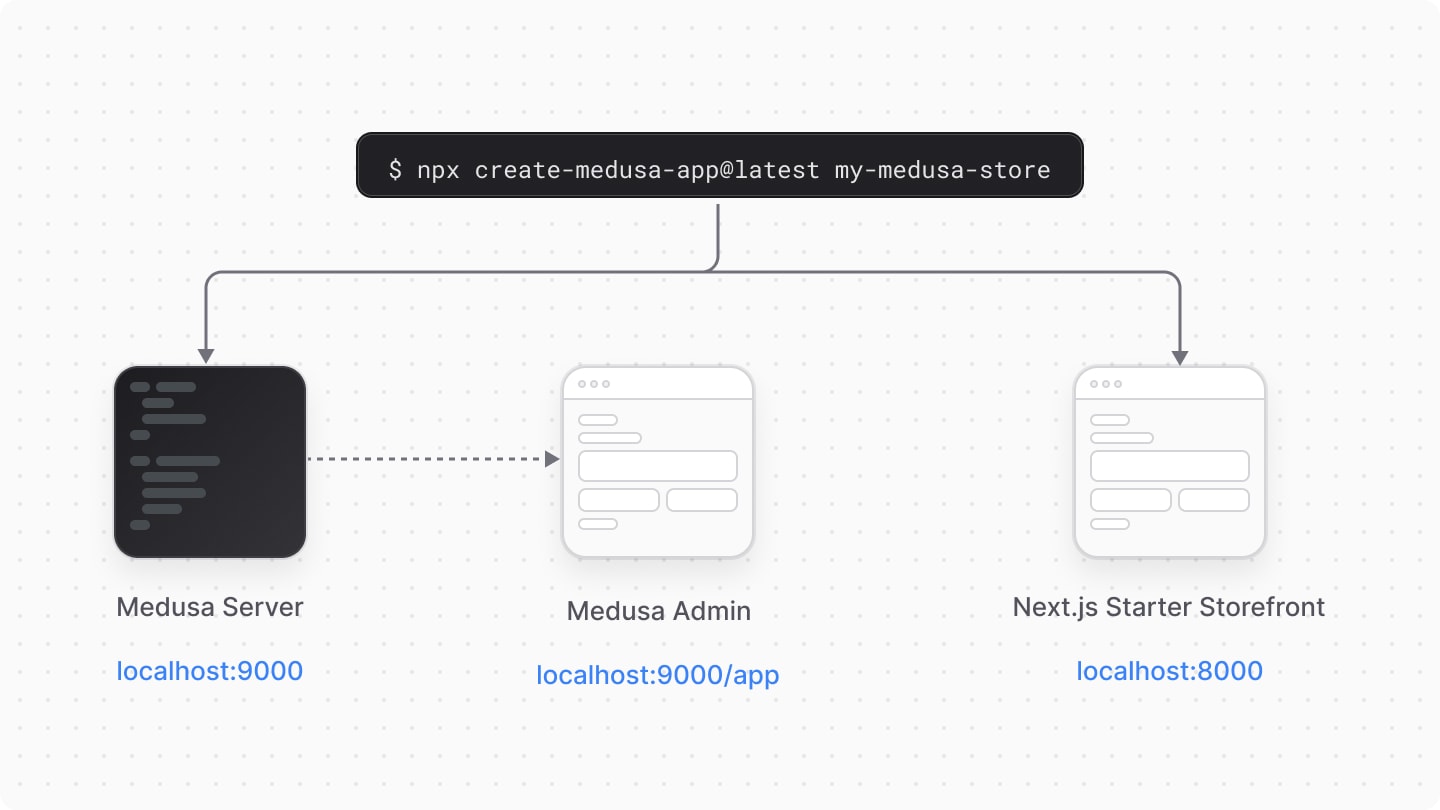
A Medusa application is made up of a Node.js server and a Vite admin dashboard. You can optionally install the Next.js Starter Storefront either while installing the Medusa application or at a later point.
To create a Medusa application, use the create-medusa-app command:
yarn or pnpm as your package manager for quicker installations and better performance. npm installations are generally slower.Where my-medusa-store is the name of the project's directory, and the PostgreSQL database created for the project will be of the name medusa-my-medusa-store. When you run the command, you'll be asked whether you want to install the Next.js Starter Storefront.
After answering the prompts, the command installs the Medusa application in a monorepository. The backend (with the admin dashboard) is installed in the apps/backend directory of the monorepository.
If you chose to install the storefront with the Medusa application, the storefront is installed in the monorepository under the apps/storefront directory.

Successful Installation Result#
Once the installation finishes successfully, the Medusa application will run at http://localhost:9000.
The Medusa Admin dashboard also runs at http://localhost:9000/app. The installation process opens the Medusa Admin dashboard in your default browser to create a user. You can later log in with that user.
If you also installed the Next.js Starter Storefront, it'll be running at http://localhost:8000.
You can stop the servers for the Medusa application and Next.js Starter Storefront by exiting the installation command. To run the server for the Medusa application again, refer to the Run Medusa Application in Development section.
Troubleshooting Installation Errors#
If you ran into an error during your installation, refer to the following troubleshooting guides for help:
- create-medusa-app troubleshooting guides.
- CORS errors.
- Errors with pnpm.
- All troubleshooting guides.
If you can't find your error reported anywhere, please open a GitHub issue.
Run Medusa Application in Development#
To run the Medusa application in development, change to the backend application's directory and run the following command:
This runs your Medusa server at http://localhost:9000, and the Medusa Admin dashboard http://localhost:9000/app.

The application will restart if you make any changes to code under the src directory, except for admin customizations which are hot reloaded, providing you with a seamless developer experience without having to refresh your browser to see the changes.
Start Building with AI Agents#
Medusa provides agentic skills to assist you in learning and building with Medusa using AI agents like Claude Code.
Build Features with AI Agents#
Medusa provides a set of skills to help you build features with AI agents. You can build features like product reviews, wishlists, quote requests, and more with AI agents.
This skill is ideal for all developers and non-technical users who want to build features with the help of AI agents.
By following this flow, you can quickly bring your business ideas to life with the help of AI agents, without having to worry about the underlying code or technical details.
Learn Medusa Development with AI Agents#
If you're a Medusa beginner and you want to learn Medusa development with the help of an AI agent, install and use the learn-medusa skills:
This starts the interactive learning experience where you'll learn Medusa concepts step-by-step by building a brands feature, similar to the Brands tutorial. You will:
- Create a Brand Module with API routes to manage brands.
- Link brands to products to associate products with brands.
- Customize the Medusa Admin dashboard to allow admin users to manage brands.
By the end, you'll have a solid understanding of Medusa's architecture and how to build custom features.
Create Medusa Admin User#
Aside from creating an admin user in the admin dashboard, you can create a user with Medusa's CLI tool.
Run the following command in your Medusa application's directory (apps/backend) to create a new admin user:
Replace admin@medusajs.com and supersecret with the user's email and password respectively.
You can then use the user's credentials to log into the Medusa Admin application.
Project Files#
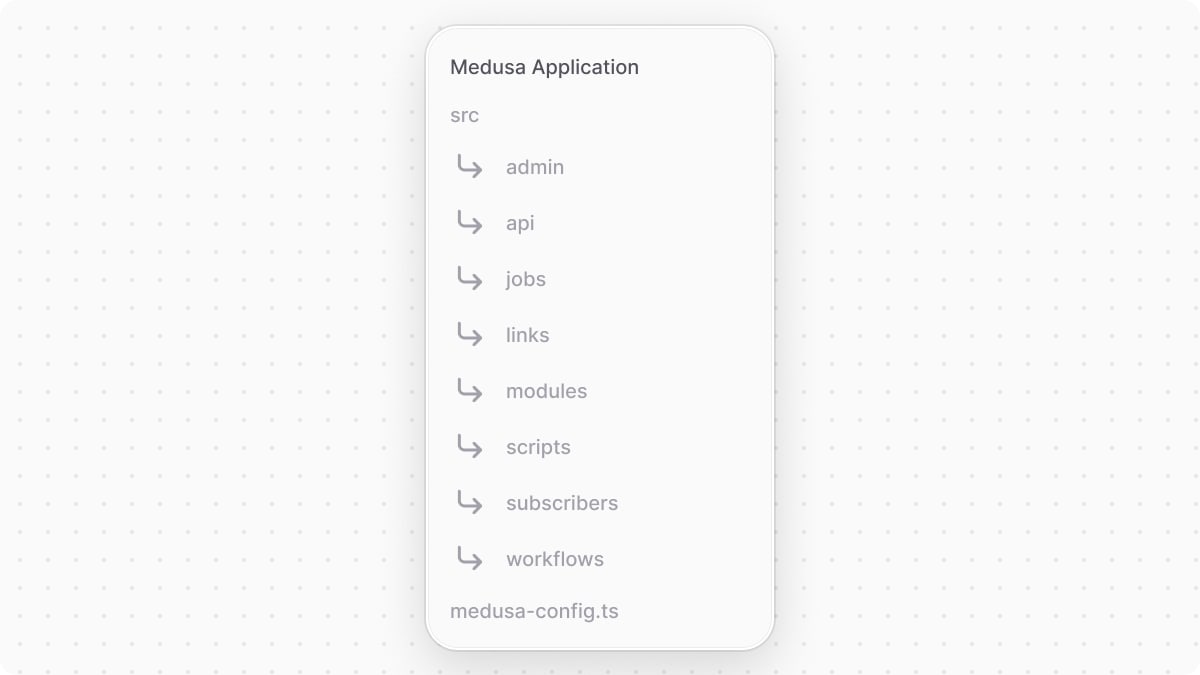
Your Medusa application's project (apps/backend) will have the following files and directories:
src#
This directory is the central place for your custom development. It includes the following sub-directories:
admin: Holds your admin dashboard's custom widgets and UI routes.api: Holds your custom API routes that are added as endpoints in your Medusa application.jobs: Holds your scheduled jobs that run at a specified interval during your Medusa application's runtime.links: Holds your module links that build associations between data models of different modules.modules: Holds your custom modules that implement custom business logic.scripts: Holds your custom scripts to be executed using Medusa's CLI tool.subscribers: Holds your event listeners that are executed asynchronously whenever an event is emitted.workflows: Holds your custom flows that can be executed from anywhere in your application.
medusa-config.ts#
This file holds your Medusa configurations, such as your PostgreSQL database configurations.
.medusa#
The .medusa directory holds types and other files that are generated by Medusa when you run the build command. Don't modify any files or commit them to your repository.
See Automatically Generated Types for more information on generated types.
Configure Medusa Application#
By default, your Medusa application is equipped with the basic configuration to start your development.
If you run into issues with configurations, such as CORS configurations, or need to make changes to the default configuration, refer to the Medusa Configuration guide.
Update Medusa Application#
Refer to the Update Medusa guide to learn how to update your Medusa project.
Next Steps#
In the next chapters, you'll learn about the architecture of your Medusa application, then learn how to customize your application to build custom features.